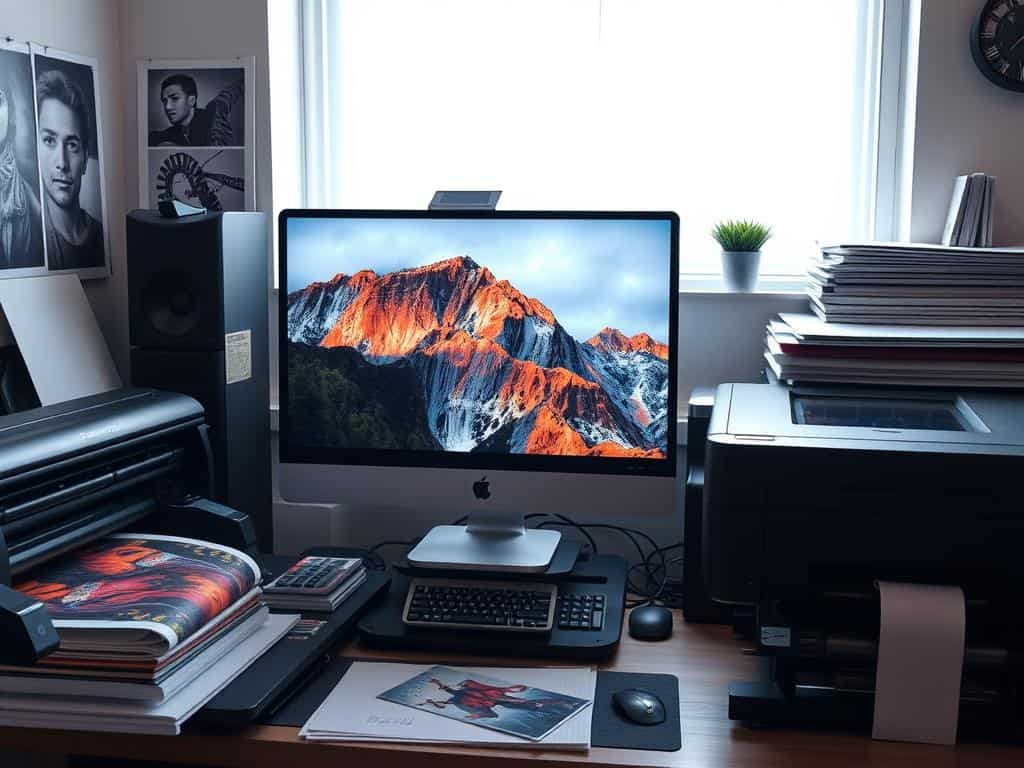
Did you know that a resolution of 300 DPI is key for high-quality prints? This standard makes sure every detail is clear when moving from digital to physical prints. Yet, many overlook how image resolution affects photo quality, leading to poor results. In this article, I’ll share expert tips to boost your image resolution, making your prints perfect.
I’ll dive into the details of image resolution, including display calibration and cleaning up files. I’ll also cover soft proofing for accurate colors and how to resize images without losing quality. My aim is to help you create prints that impress and leave a lasting impression.
Key Takeaways
- Optimal print resolution should be at least 300 DPI for sharp images.
- Calibrate displays every six to eight weeks for accurate color.
- Soft proofing is key for correct color representation.
- Resizing should be done carefully to avoid quality loss.
- Print sharpening techniques differ from those used for web images.
Understanding Image Resolution and Its Importance
Image resolution is key in photography and print making. It affects how clear an image looks. Knowing about resolution helps me choose the right settings for my photos and prints.
Resolution is measured by the number of pixels in an image. It’s shown as a number like 6000 x 4000 pixels. This means the image has 24,000,000 pixels or 24 megapixels.
What is Image Resolution?
High-resolution images have lots of pixels, like 24MP to 200MP. This means they can show a lot of detail. When printing, a resolution of 300 dots per inch (dpi) is best for clear prints.
How Image Resolution Affects Photo Quality
Lower resolution images might not be clear enough for big prints. For example, a 1920 x 1080 pixel image is only 2MP. It’s good for screens but not for prints.
When printing, I need to think about pixel size and how it affects clarity. A 12.1 MP image can be printed up to 14.19 x 9.44 inches at 300 PPI without losing quality.
Techniques to Enhance Image Resolution for High-Quality Prints
To get stunning prints, we need to use several key techniques. Each method is important for achieving professional-quality prints. Let’s explore the essential practices I use for top-notch print results.
Calibrating Your Displays
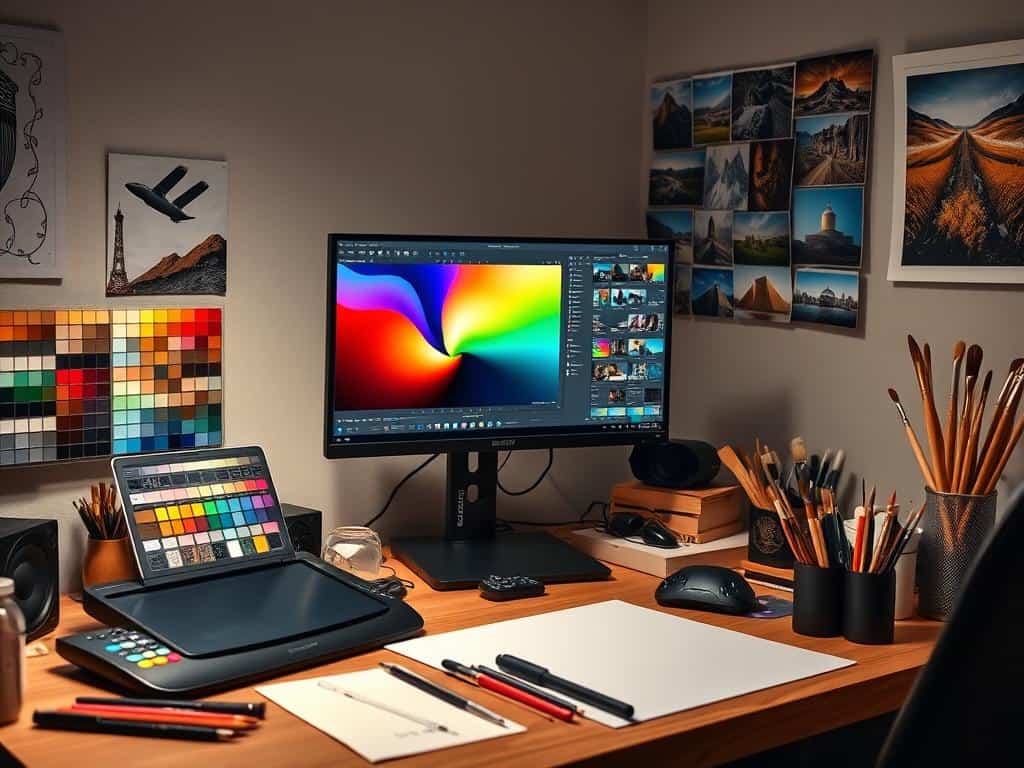
Calibrating your displays regularly is key for true color. I calibrate mine every six to eight weeks. This ensures colors and brightness on-screen match the print results. It helps me make better choices during photo prep.
Cleaning Up Master Files
Before printing, I clean up my master files. Getting rid of dust spots is vital, as they can get worse in big prints. This focus on detail greatly improves the image’s quality.
Soft Proofing for Accurate Color Representation
Soft proofing is a must for checking color on different papers. It lets me adjust before printing, avoiding surprises. This way, my prints match my vision perfectly.
Resizing Images Correctly
Resizing images right is critical. I resize to 300 PPI for the best print quality. Adobe Photoshop’s “Bicubic Sharper” helps keep images clear for large prints.
Print Sharpening Techniques
For sharp, vibrant prints, I use print sharpening. It needs more than web sharpening. Nik Output Sharpener is my go-to for boosting print details. It makes sure my prints impress with their sharpness.
Conclusion
Understanding image resolution is key for perfect prints. The tips shared in this article are vital for high-quality photos. By following these steps, you can turn simple photos into stunning works of art.
Using techniques like cleaning master files and soft proofing can greatly improve your prints. Print sharpening also boosts the clarity and detail of your images. This is true, no matter the camera’s resolution.
Creating a solid image processing workflow is essential. It keeps your prints looking great and makes you happy with your work. Whether you use a smartphone or a DSLR, these steps will help you get the best results.
