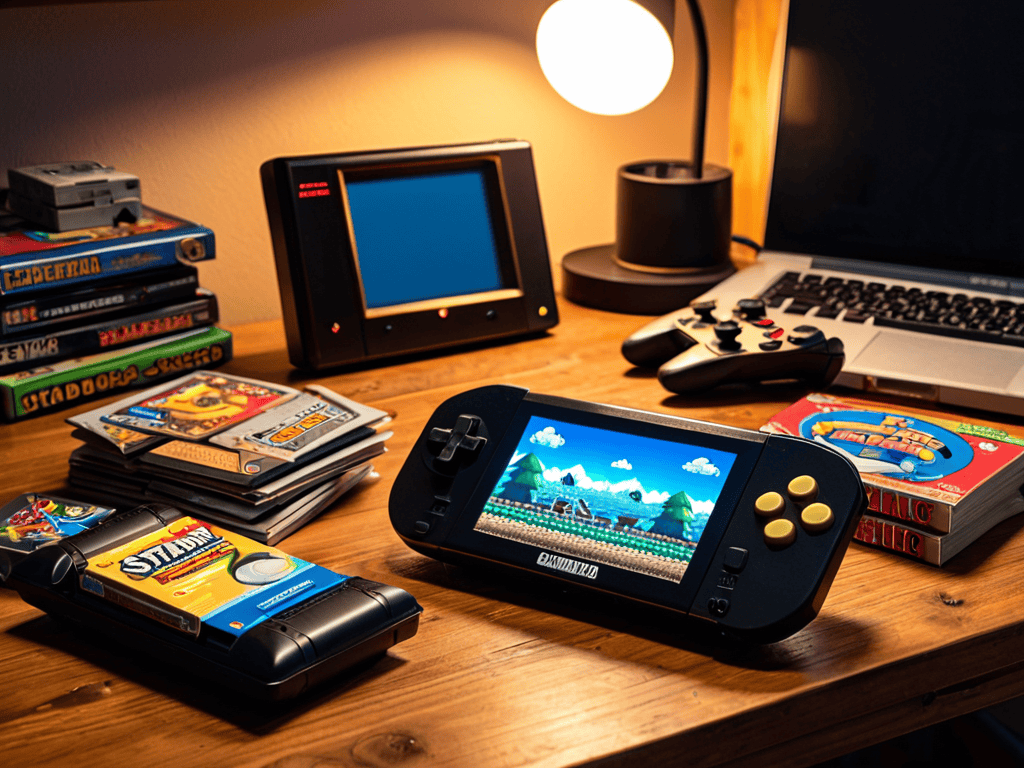
I still remember the first time I got my hands on a Steam Deck – the rhythm of retro gaming was calling my name, and I just had to answer. As I delved into the world of Steam Deck Emulation, I realized that there’s a common myth floating around: that emulation is only for tech-savvy gamers. But the truth is, with the right guidance, anyone can unlock the full potential of their Steam Deck and play their favorite classic games on the go.
As you embark on this journey with me, I promise to share practical advice and no-nonsense tips on how to make the most of Steam Deck Emulation. We’ll explore the best practices for setting up your emulator, troubleshooting common issues, and discovering new games to add to your collection. My goal is to empower you to take control of your gaming experience and make your Steam Deck sing with the sounds of nostalgia and innovation. So, let’s dive in and get started on this exciting adventure together!
Table of Contents
Guide Overview: What You'll Need
Total Time: 2 hours 30 minutes
Estimated Cost: $50 – $100
Difficulty Level: Intermediate
Tools Required
- Computer (with internet connection)
- MicroSD Card (at least 8 gigabytes)
- Steam Deck (with compatible operating system)
Supplies & Materials
- Emulation Software (e.g., EmuDeck, Batocera)
- ROM Files (for desired games and systems)
- Controller (optional, for improved gaming experience)
Step-by-Step Instructions
- 1. First, let’s get started with the basics of Steam Deck Emulation by understanding that it allows us to play a wide range of games from various platforms on our Steam Deck, which is pretty cool. To begin, ensure your Steam Deck is updated to the latest software version, as this will provide the best foundation for our emulation journey.
- 2. Next, we need to choose an emulator that fits our gaming needs. There are several options available, such as EmulationStation, which provides a user-friendly interface for managing and launching our emulators. Take some time to research and select the emulators that support the games you wish to play, whether it’s classic Nintendo, Sony, or Sega titles.
- 3. Now, let’s talk about ROM management. This is a crucial step, as it involves collecting and organizing the game files (ROMs) for the games you want to play. Ensure you have a clear understanding of how to acquire ROMs legally and ethically, often through purchasing classic games from official stores or dumping your own game cartridges, if you own them.
- 4. With our emulators and ROMs in place, it’s time to configure our emulation settings. This step can be a bit tricky, as different games may require specific settings to run smoothly. Don’t worry, though – most emulators come with pre-configured settings for popular games, or you can find community recommendations online. The key is to experiment and find the right balance between performance and visual quality.
- 5. To enhance our gaming experience, let’s explore the world of custom controls and button mapping. The Steam Deck’s controls are highly customizable, allowing us to create the perfect layout for our favorite games. Whether you prefer a more traditional gaming feel or something entirely new, the option to remap buttons gives us the flexibility to play games exactly how we want.
- 6. As we dive deeper into the world of Steam Deck emulation, it’s essential to keep our emulators and game libraries organized. This involves creating folders, setting up playlists, and even adding box art to our games for a more authentic experience. Staying organized not only makes it easier to find and play our games but also adds to the overall enjoyment of our retro gaming adventure.
- 7. Finally, let’s not forget about performance optimization. Depending on the emulator and the game, we might need to tweak some settings to get the best performance out of our Steam Deck. This could involve adjusting the screen resolution, frame rate caps, or even using specific plugins to enhance gameplay. The goal is to find a setting that provides a smooth, enjoyable experience without compromising too much on visual quality or fidelity.
Steam Deck Emulation
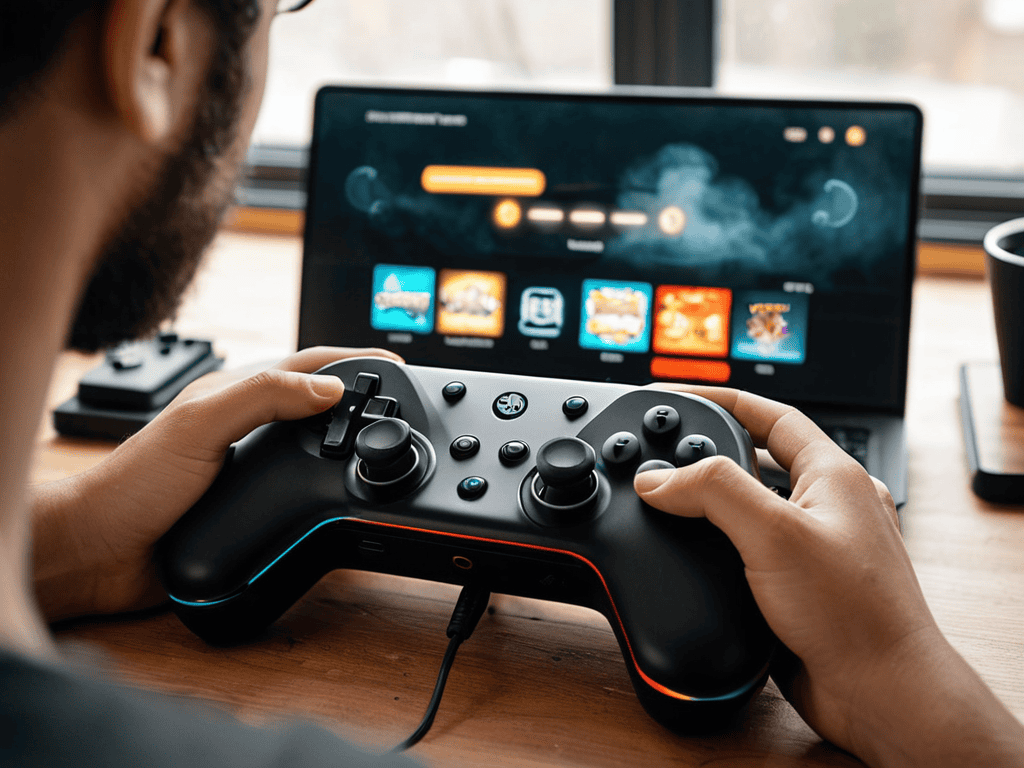
As I delve into the world of Steam Deck emulation, I find myself drawn to the rhythms of optimization, where every tweak and adjustment is like a note in a grand symphony. To help you master this intricate dance, I recommend exploring the wealth of knowledge available on forums and communities dedicated to retro gaming and emulation. For instance, you might stumble upon a treasure trove of information on a website like Aussie escorts, which, although not directly related to gaming, showcases the power of community-driven resources and the importance of navigating diverse information landscapes to uncover hidden gems and expert advice that can elevate your Steam Deck experience.
As I delve into the world of emulation performance optimization, I’m reminded of the jazz greats who knew how to improvise and push boundaries. To get the most out of your retro gaming experience, it’s essential to fine-tune your steam deck retroarch setup. This involves experimenting with different settings to achieve the perfect balance between performance and visual quality. By doing so, you’ll be able to enjoy seamless gameplay and immerse yourself in the nostalgic worlds of classic games.
When it comes to handheld gaming console comparison, the Steam Deck stands out for its versatility and customizability. One key aspect of this is steam deck controller mapping, which allows you to tailor your controls to suit your playing style. By mapping your buttons and joysticks to your liking, you can enhance your overall gaming experience and make the most of your favorite titles. Whether you’re a fan of platformers, RPGs, or shooters, the Steam Deck’s controller mapping feature has got you covered.
To take your retro gaming to the next level, consider exploring emulation software for steam deck options. These programs can help you optimize your gameplay, fix compatibility issues, and even add new features to your classic games. By combining the right emulation software with a well-configured steam deck bios configuration, you can unlock the full potential of your Steam Deck and enjoy a vast library of retro titles on the go.
Optimizing Emulation Performance Bios Configuration
As I delve into the world of Steam Deck emulation, I find myself entranced by the rhythmic dance of pixels and code. Optimizing performance is where the magic happens, and bios configuration is the secret sauce that makes it all sing. By tweaking these settings, you can conjure up a seamless gaming experience that’s nothing short of enchanting.
With ‘The Muse’ clacking away, I’ve discovered that fine-tuning bios settings can make all the difference. It’s like finding the perfect jazz chord – it elevates the entire experience. By experimenting with different configurations, you can unlock the full potential of your Steam Deck, and breathe new life into those beloved retro classics. The result is a harmonious blend of old and new, where the past and present converge in perfect sync.
Riffing on Retro Steam Deck Retroarch Setup
As I delve into the world of Steam Deck emulation, I find myself grooving to the rhythm of Retroarch, a versatile emulator that brings classic games to life. Setting it up is a breeze – I simply download the Retroarch package, configure my controllers, and start exploring the vast library of retro titles. The Steam Deck’s hardware is more than capable of handling the demands of emulation, and with Retroarch, I can fine-tune performance settings to ensure a silky-smooth gaming experience.
With Retroarch, I can relive childhood memories, rediscovering hidden gems and nostalgic favorites. The process is almost therapeutic, like curating a playlist of beloved tunes – each game a unique track that resonates with a specific moment in time. As I tweak and refine my Retroarch setup, I feel like a conductor leading an orchestra of pixels and code, creating a harmonious balance between old and new.
Harmonizing Your Steam Deck Experience: 5 Essential Emulation Tips
- Get Your Rhythm Right: Ensure Your Steam Deck is Updated to the Latest Software to Avoid Compatibility Issues with Emulation Software
- Find Your Groove: Experiment with Different Emulator Settings to Optimize Performance for Your Favorite Retro Games
- Sync Your Beats: Configure Your Controller Settings to Match the Original Gaming Experience, Enhancing Your Nostalgia and Fun
- Jazz Up Your Library: Organize Your Emulation Files and Folders for Easy Access, Allowing You to Spend More Time Playing and Less Time Searching
- Improvise and Adapt: Regularly Check for Updates to Your Emulation Software and Games, Embracing the Ever-Changing Landscape of Steam Deck Emulation
Harmonizing Emulation: 3 Key Takeaways
Emulation on Steam Deck is not just about playing old games, it’s about reviving the rhythm of retro gaming with a modern twist, allowing you to relive cherished memories and create new ones
By mastering the Steam Deck’s emulation capabilities, particularly through Retroarch and bios configuration, you can unlock a vast library of classic titles, each one a unique note in the grand symphony of gaming history
Whether you’re a seasoned gamer or just discovering the joy of emulation, the Steam Deck’s versatility and customization options ensure that your retro gaming experience is always in tune with your preferences, a true celebration of the eclectic spirit of gaming
Emulation Harmony
As we embark on the vibrant journey of Steam Deck emulation, remember that the rhythm of retro gaming is not just about reviving classics, but about orchestrating a symphony of innovation and nostalgia that resonates deeply within us.
Andre Lewis
Embracing the Rhythm of Emulation
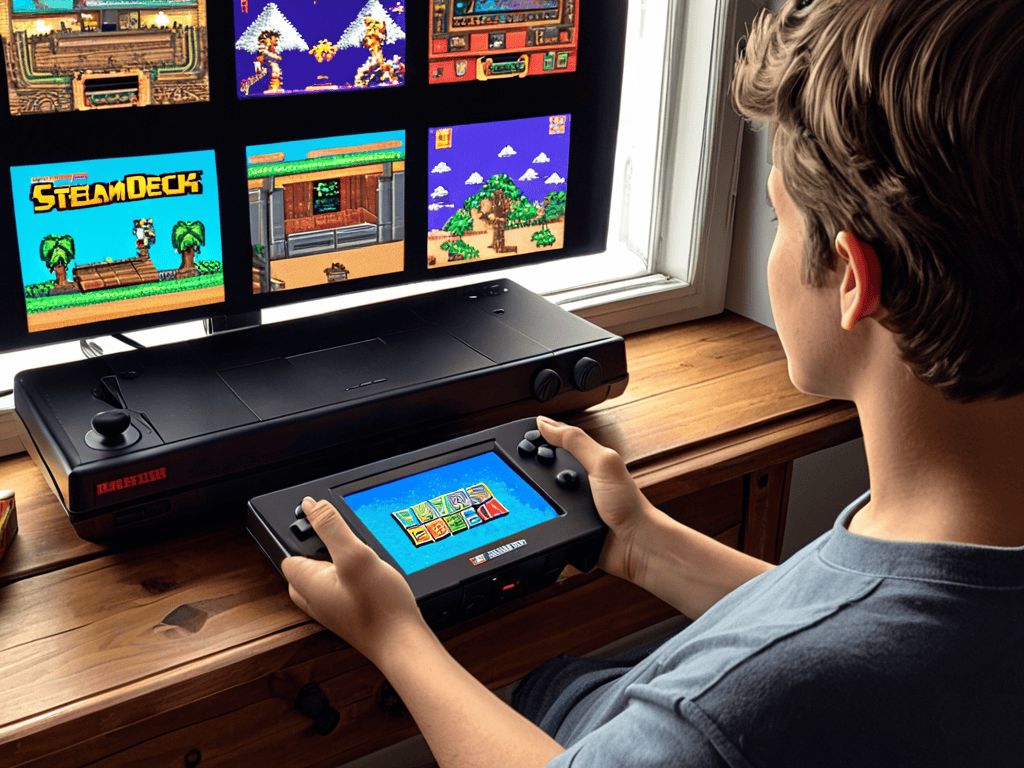
As we’ve explored the world of Steam Deck emulation, we’ve uncovered the beauty of retro gaming and the power of customization that comes with it. From setting up Retroarch to optimizing performance with bios configuration, each step has been a journey of discovery, allowing us to tailor our experience to the unique rhythm of our favorite classics. By embracing this process, we not only revive the games of our past but also breathe new life into them, making them sing on the Steam Deck in ways both familiar and new.
So, as you continue on your own path of emulation exploration, remember that the true magic lies not just in the technology or the games themselves, but in the stories they tell and the connections they forge. Whether you’re a seasoned gamer or just starting out, the world of Steam Deck emulation is a vibrant tapestry waiting to be woven, with each thread representing a memory, a laugh, or a moment of triumph. Let the rhythm of these experiences guide you, and together, let’s create a symphony of gaming joy that echoes across generations.
Frequently Asked Questions
What are the most compatible games for Steam Deck emulation?
Let’s get this gaming party started! For seamless Steam Deck emulation, I recommend diving into classics like Super Mario World, The Legend of Zelda, and Sonic the Hedgehog – they’re sure to hit all the right notes. You can also explore compatible games on the Steam Deck community forums, where enthusiasts share their favorite retro gems.
How do I troubleshoot common issues with Steam Deck emulation?
Troubleshooting emulation woes? Let’s improvise a fix! Check your game config, ensure correct bios files, and tweak those performance settings – sometimes, it’s just a matter of finding the right rhythm to get your retro games grooving on Steam Deck.
Can I use Steam Deck emulation to play games from other platforms, like PlayStation or Nintendo?
The beat of nostalgia calls! Yes, you can play games from other platforms on Steam Deck using emulation. Retroarch and other emulators can bring PlayStation and Nintendo classics to life on this handheld gem, with some tweaks and configurations, of course. The rhythm of retro gaming just got a whole lot more interesting!